

User manual
Guided encryption of USB sticks and partitions, with password recovery through your company Help Desk.
Version 1.2 · Windows · macOS · LinuxNovember 2026
Guided encryption of USB sticks and partitions, with password recovery through your company Help Desk.
E: or /dev/sdb1 instead of /dev/disk4s1).
Kripta protects the data on your USB sticks and on partitions of external disks with AES-256 encryption. After encryption, the content of the drive can only be read by someone who knows the password: if you lose the stick, nobody else can open it.
Four steps: choose the drive, choose the password, confirm, wait.
When you connect an encrypted drive, Kripta asks for the password right away and opens it.
The same stick opens on Windows, macOS and Linux (standard VeraCrypt format).
Kripta installs and updates VeraCrypt by itself; the company configuration is imported from a file.
Italian, English, French, Spanish, German, Russian, Arabic, Chinese and Japanese, plus any you add.
If you forget the password, the Help Desk can help you set a new one without losing data.
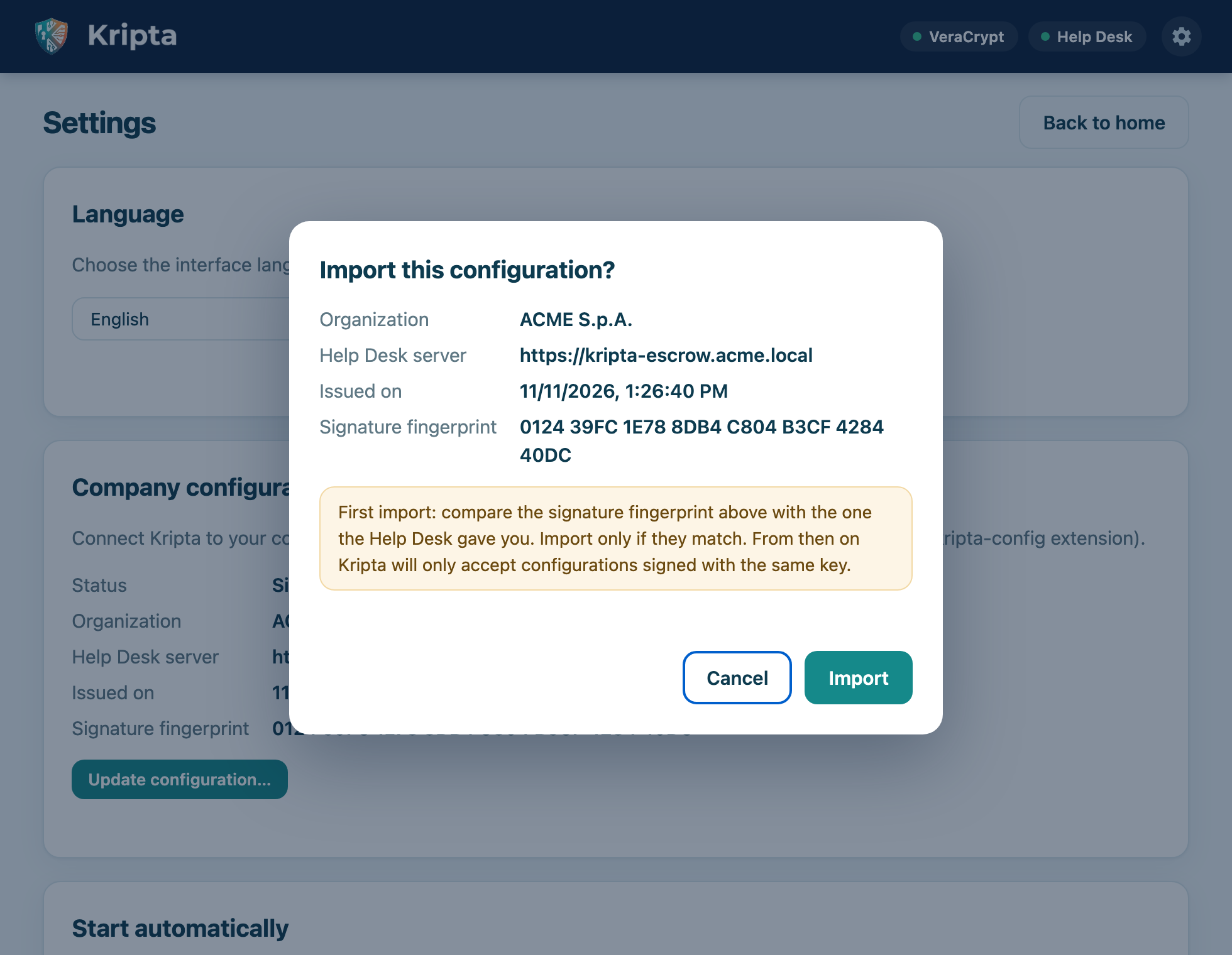
.kripta-config) received from the Help Desk, unless IT has already configured the computer.During encryption Kripta generates a 48-digit recovery key, protects it and sends it to the Help Desk archive. You never need to see or keep it. Only Help Desk operators can look it up, after verifying your identity, and every lookup is logged.
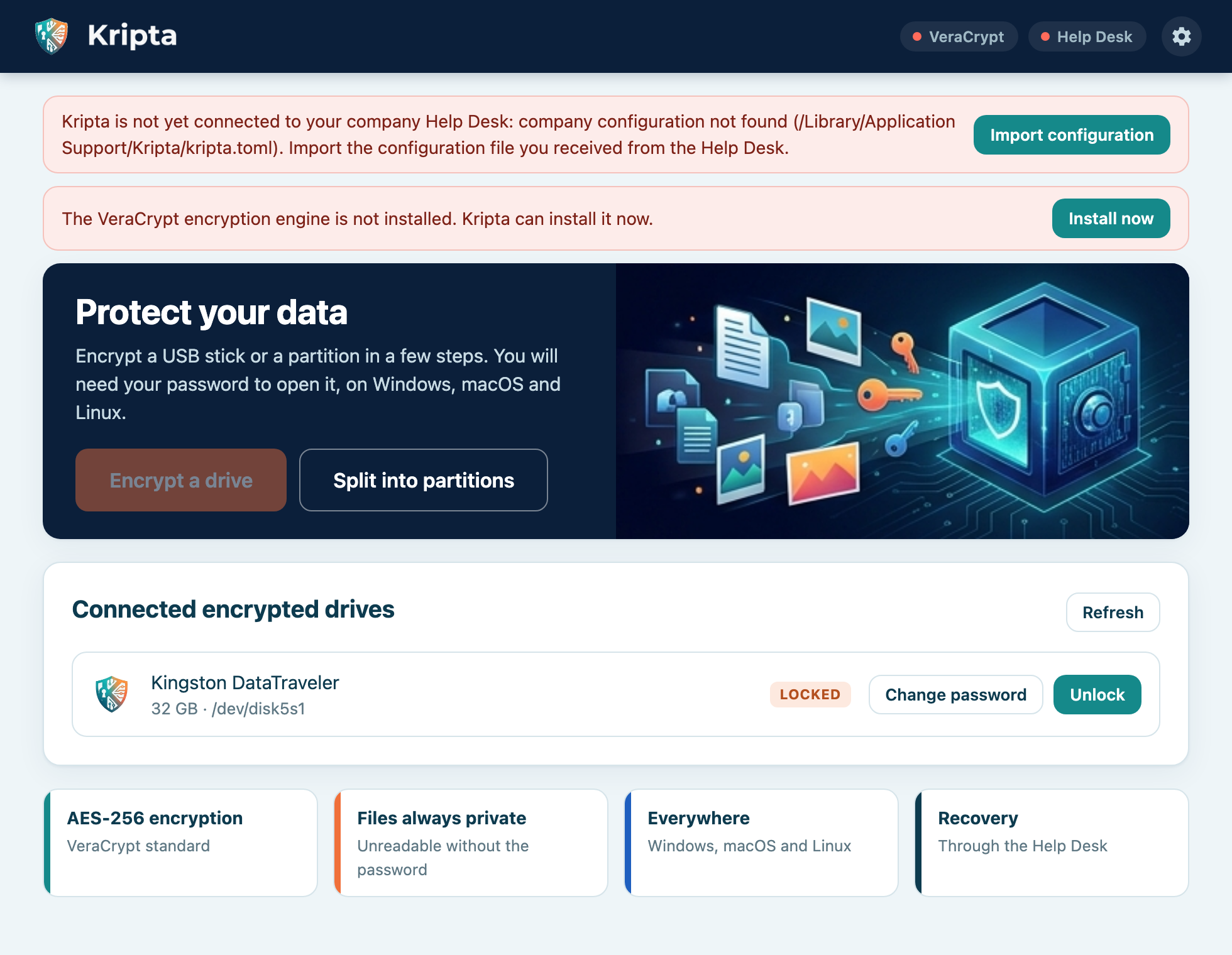
At first start Kripta checks two things: whether it is connected to your company Help Desk and whether VeraCrypt is on the computer. If something is missing, an alert with a button to fix it appears at the top of the window. You can do everything yourself.
The configuration tells Kripta which Help Desk archive to send recovery keys to. The Help Desk gives it to you as a file with
the .kripta-config extension, digitally signed: nobody can change it without Kripta noticing.
Kripta already contains the official VeraCrypt installer (and FUSE-T for macOS). Press Install now in the alert and confirm the authorization request: Kripta checks the official signature of the installers and installs them without further questions.
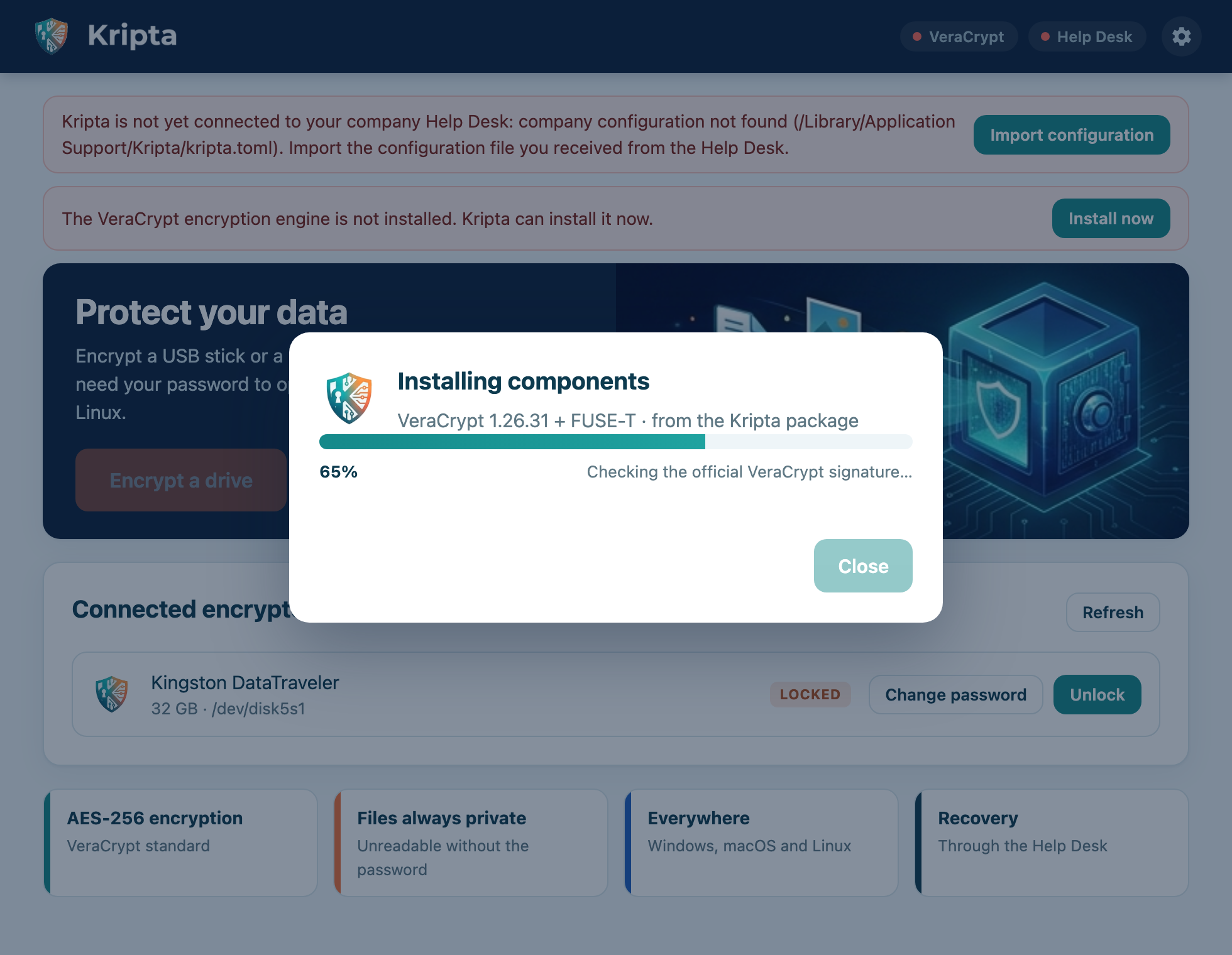
When it finishes, Installation completed appears. On Windows a restart may be required.
At every start (and then once a day) Kripta checks whether a newer version of VeraCrypt has been released. If so, a blue alert appears with the Update button. The new version is downloaded from the official site and installed only if the VeraCrypt developers' signature is valid.
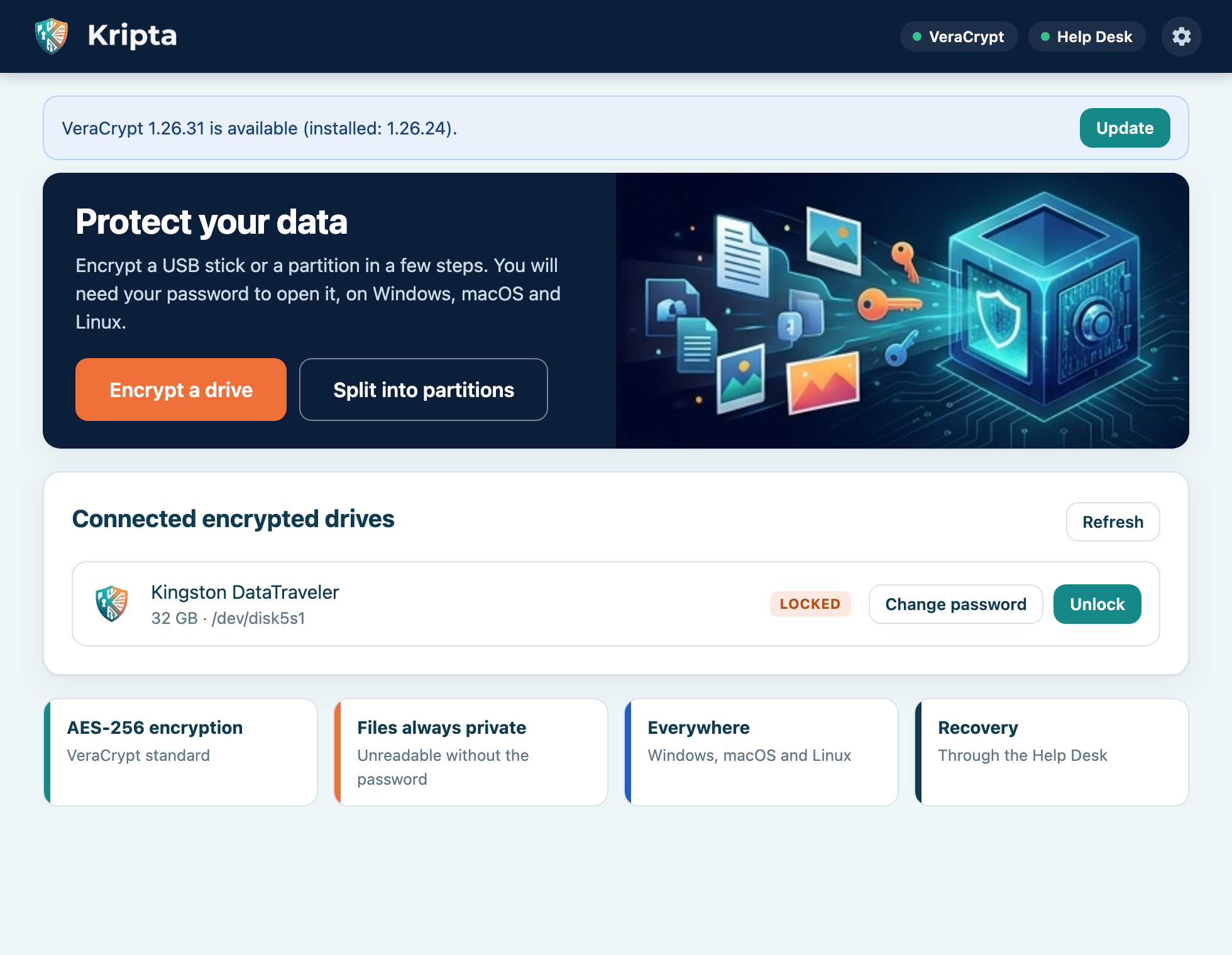
When it opens, Kripta shows the home screen. From here you can encrypt a new drive and manage the encrypted drives connected to the computer.
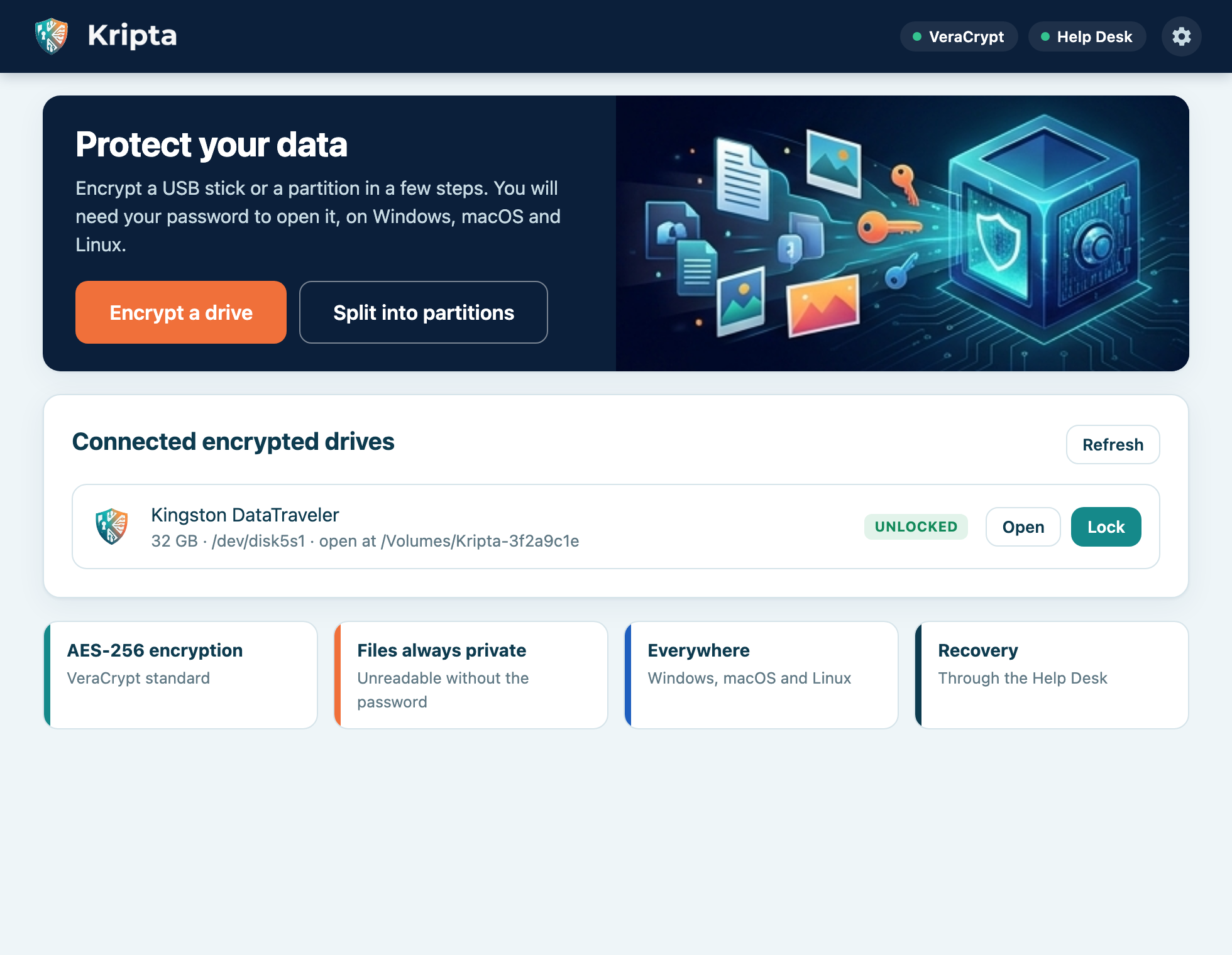
| Element | What it is for |
|---|---|
| VeraCrypt | Green dot: the encryption engine is installed. Red: it is not (chapter 2). Hover to see the version. |
| Help Desk | Green: the key archive can be reached. Red: it cannot (no network, VPN off, configuration missing). |
| Gear | Opens Settings: language, company configuration, components (chapter 9). |
| Encrypt a drive | Starts the wizard (chapter 4). Disabled if Kripta is not configured or VeraCrypt is missing. |
| Split into partitions | Splits a USB stick or an external disk into several partitions (chapter 5). |
| Connected encrypted drives | The Kripta drives connected, with status Locked or Unlocked and their buttons. |
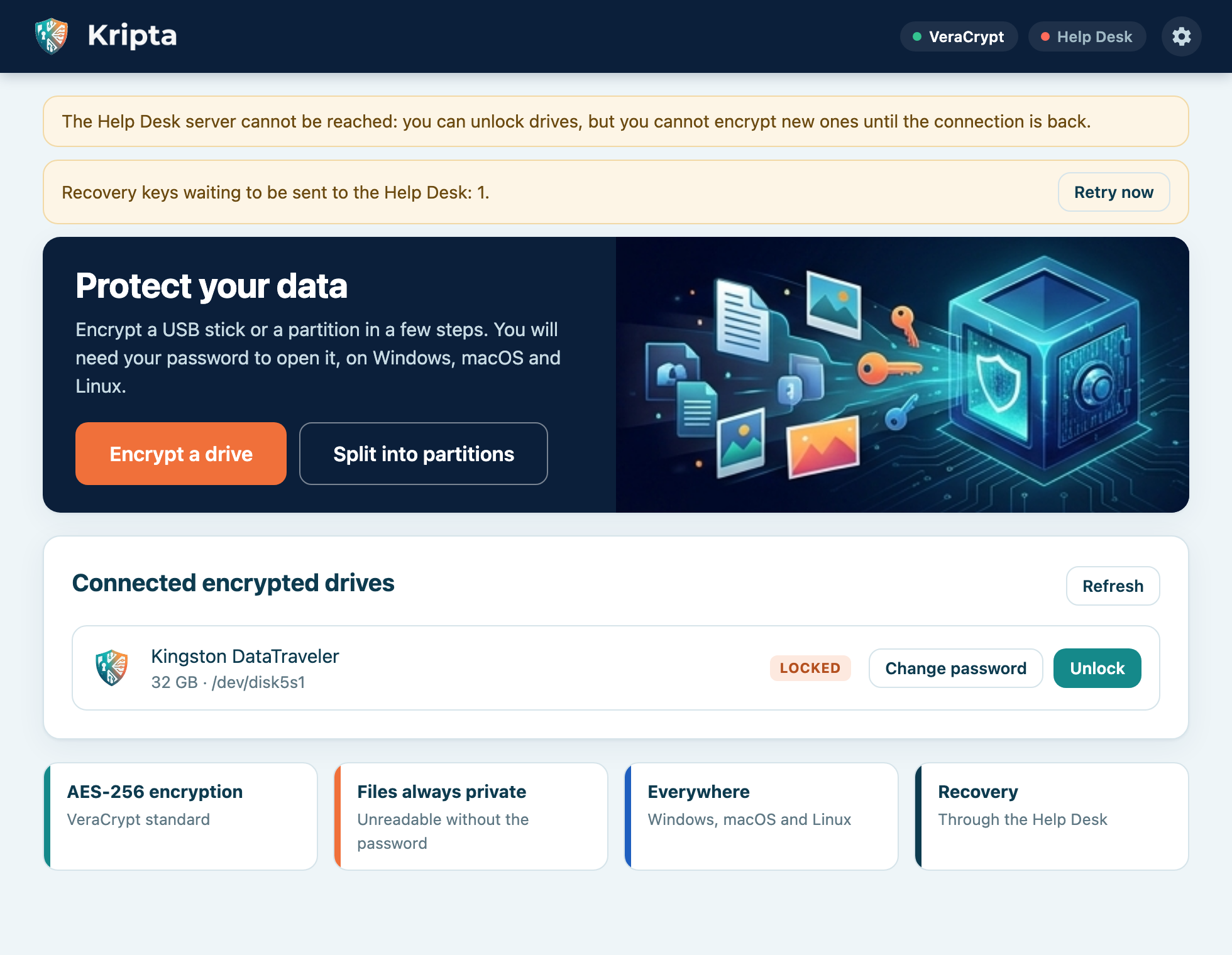
Coloured boxes with a button to solve the problem may appear at the top of the window:
Kripta works in the background to notice when you connect an encrypted drive, and is controlled from an icon with the emblem:
| System | Where the icon is | Good to know |
|---|---|---|
| macOS | In the menu bar at the top right. Kripta does not appear in the Dock. | On MacBooks with a notch, extra icons are hidden when the bar is full: remove the ones you do not use or drag them while holding ⌘. |
| Windows | In the notification area at the bottom right, near the clock. | If it is among the hidden icons, click the ^ arrow and drag the emblem onto the bar. |
| Linux | In the panel's notification area. | On “plain” GNOME (Fedora, Debian) the AppIndicator and KStatusNotifierItem Support extension is needed. |
The icon menu contains Open Kripta, Encrypt a drive…, Split into partitions…, Lock all drives, Settings… and Quit Kripta. The items follow the chosen language.
After installation Kripta starts by itself every time you sign in, without opening the window, and keeps listening: as soon as you connect an encrypted drive it asks for the password. You can turn this off in Settings › Start automatically (chapter 9). Quit Kripta closes it until your next sign-in.
Connect the stick, check that the Help Desk indicator is green and press Encrypt a drive.
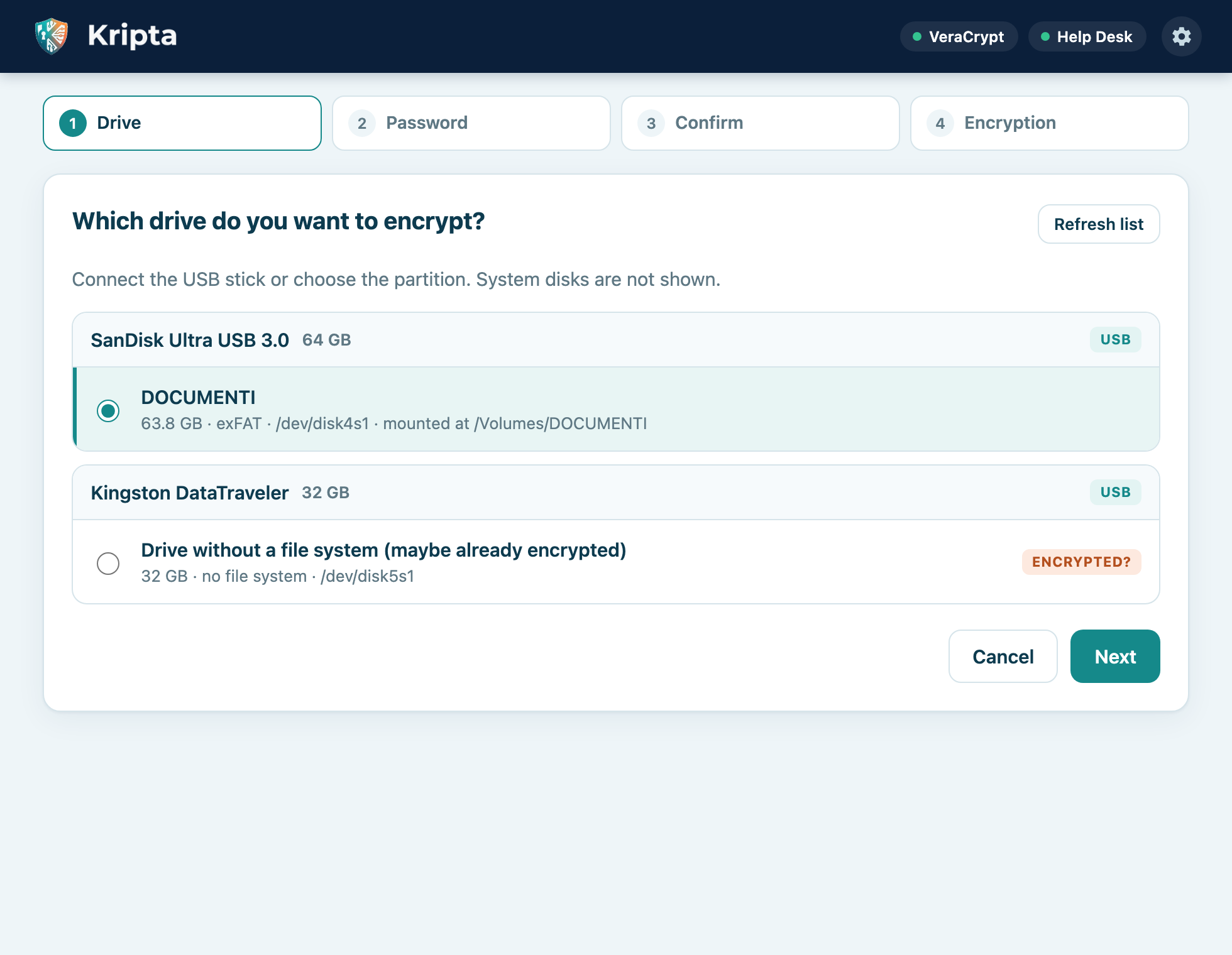
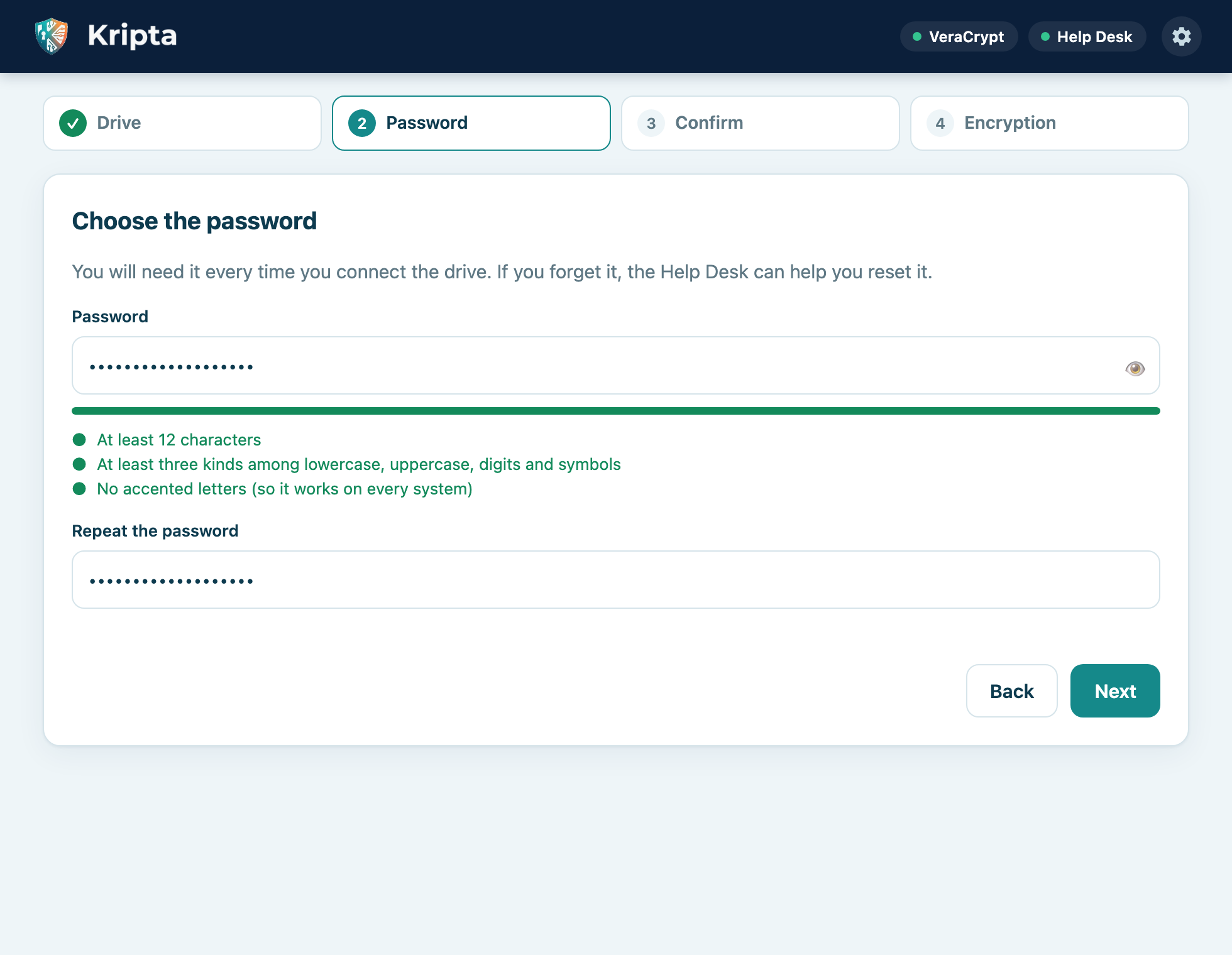
The password must have at least 12 characters, at least three kinds among lowercase, uppercase, digits and symbols, and no accented letters (à, è, ü…), which other systems might type differently. The coloured bar shows the strength; the 👁 button shows the password. Repeat it in the second field and press Next.
Train-Lake-Green-47) is secure and easy to remember. Do not use your company account password.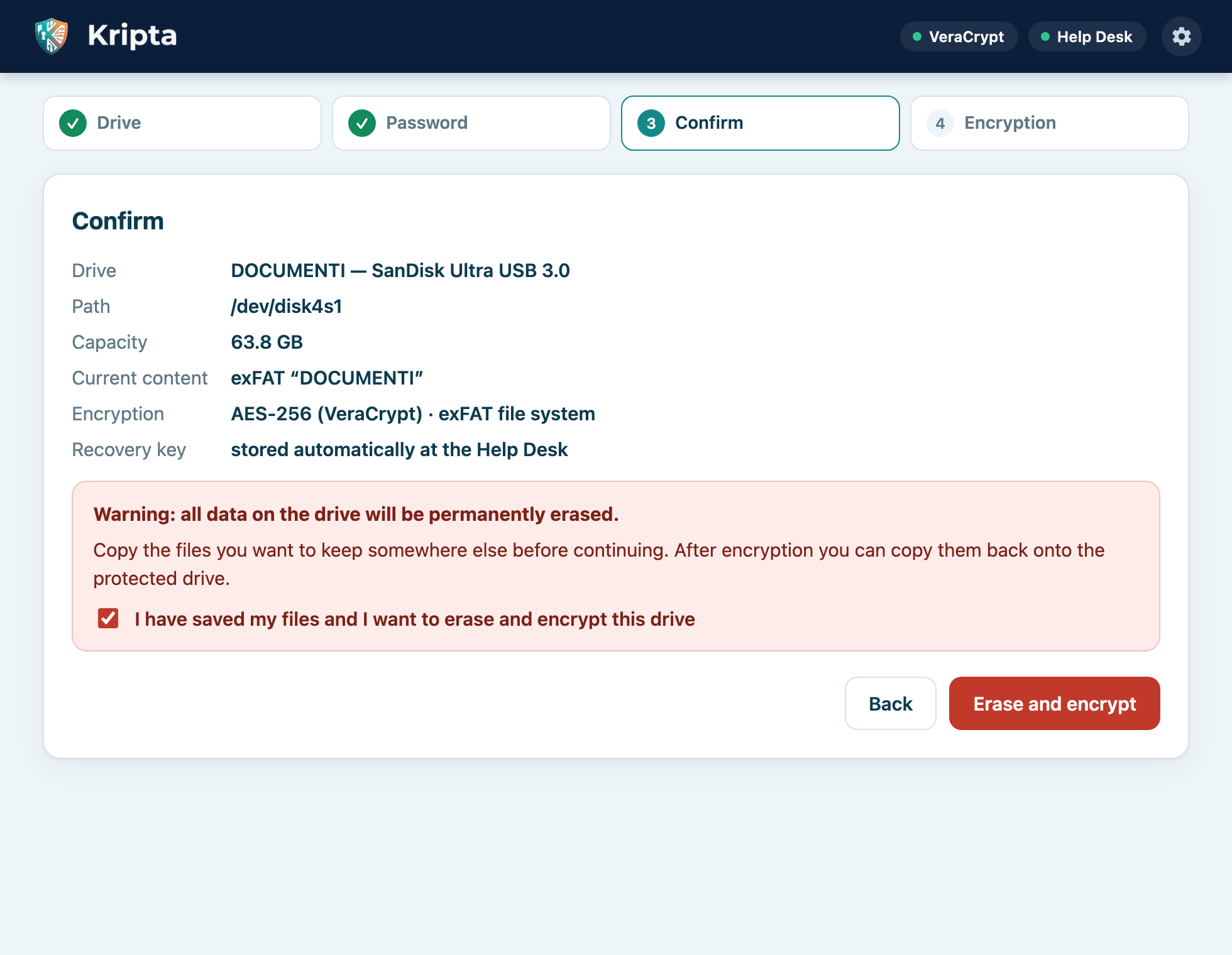
Check the summary, tick I have saved my files and I want to erase and encrypt this drive and press Erase and encrypt. The system may ask for administrator authorization.
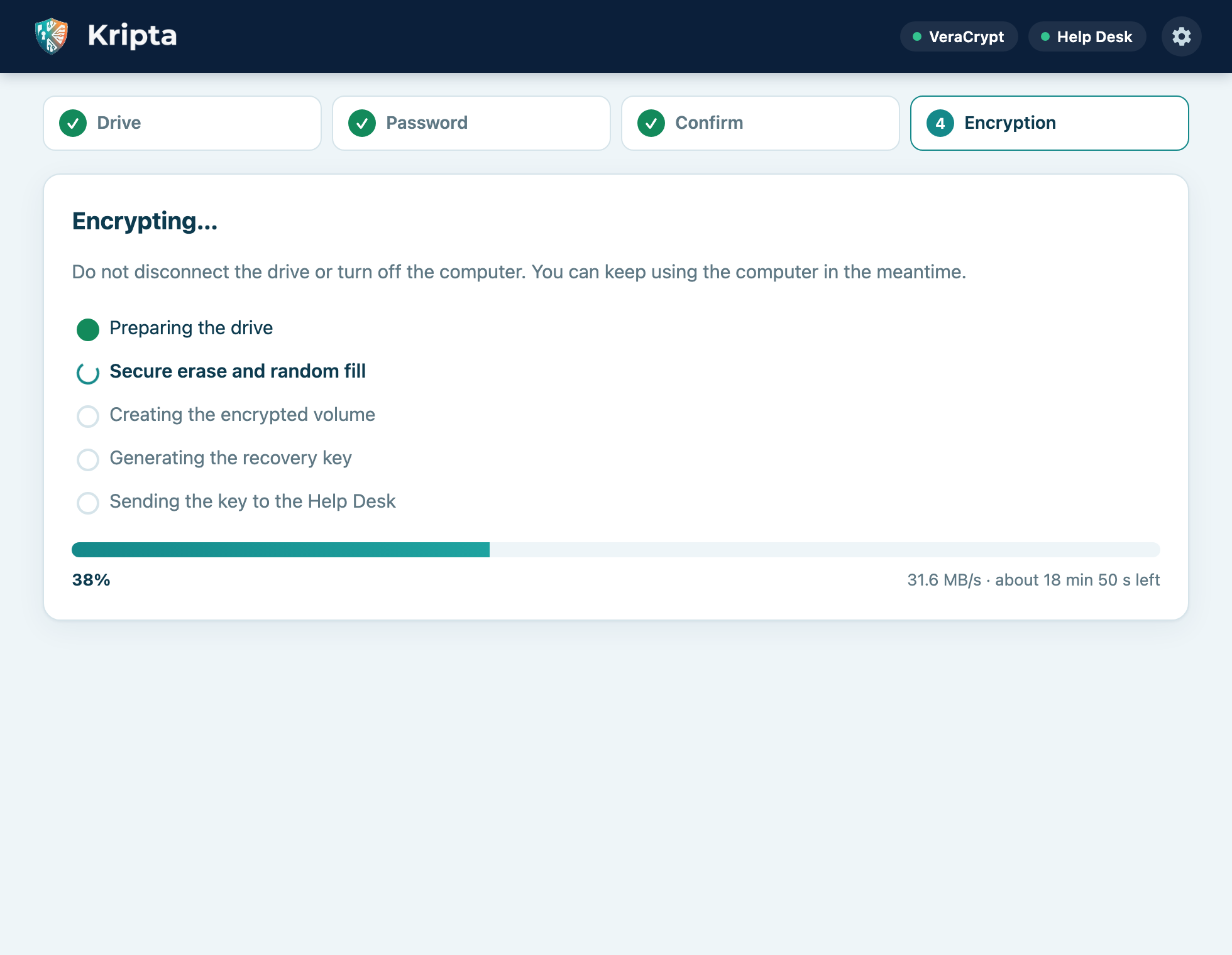
Kripta prepares the drive, overwrites it entirely with random data (the longest phase), creates the exFAT encrypted volume, generates the recovery key and sends it to the Help Desk.
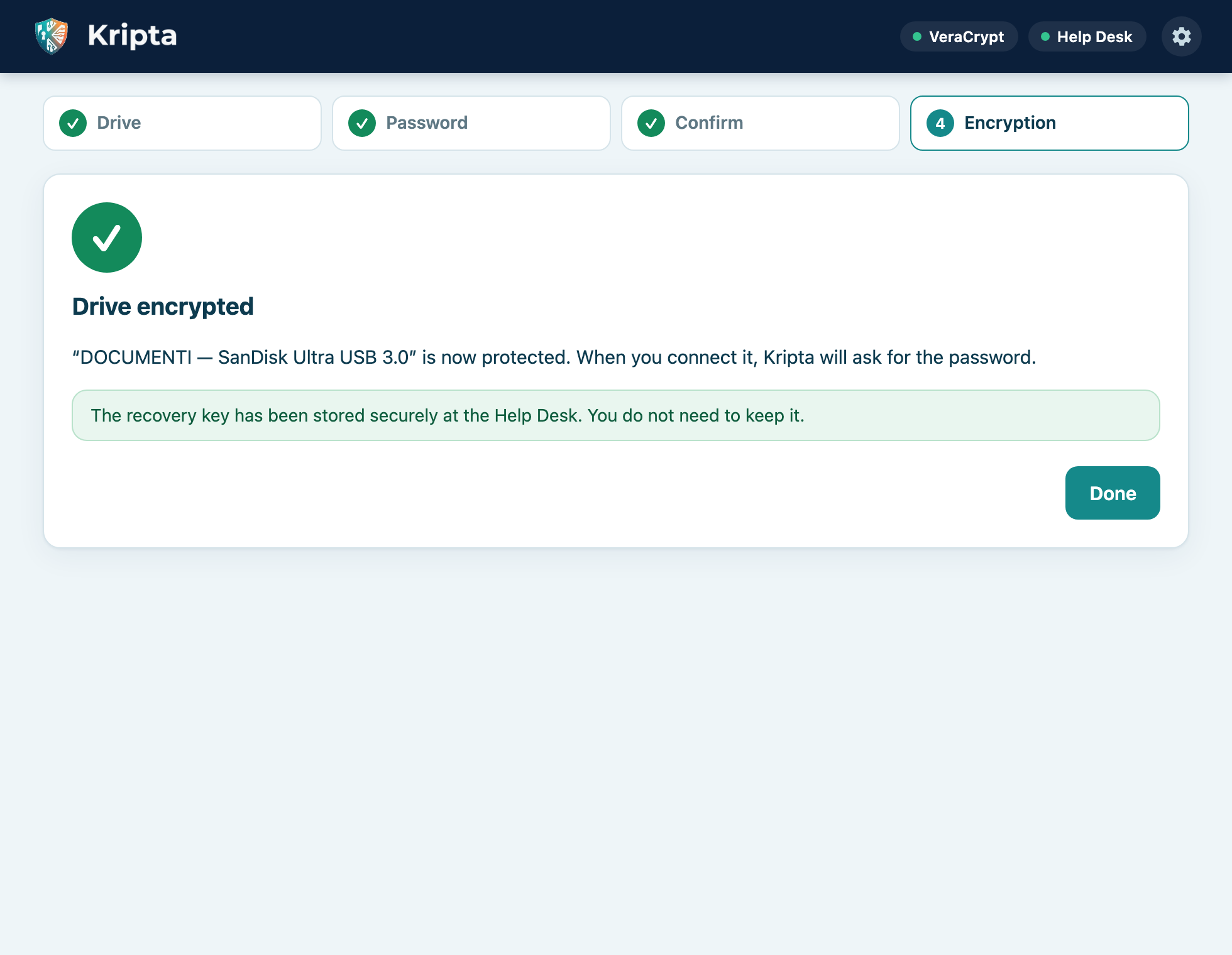
If the recovery key has not been sent yet appears, the drive is encrypted and usable anyway: keep Kripta running and connected, it will send the key as soon as possible. If encryption fails, the message explains why (chapter 11).
With Split into partitions you divide a USB stick or an external disk into several independent parts, each with its own name and file system. The typical use is an encrypted area for confidential data and a free area to exchange files with computers without Kripta.
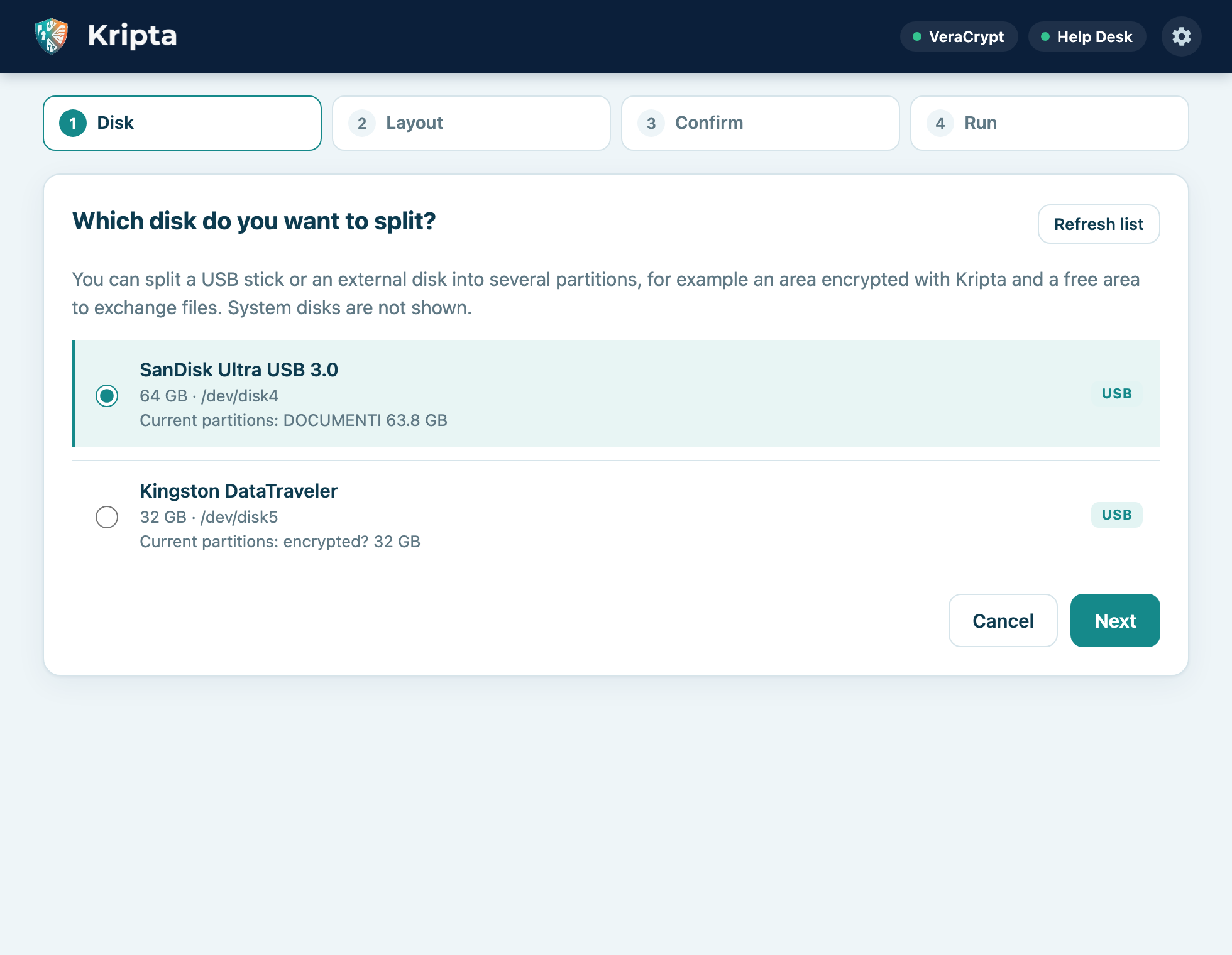
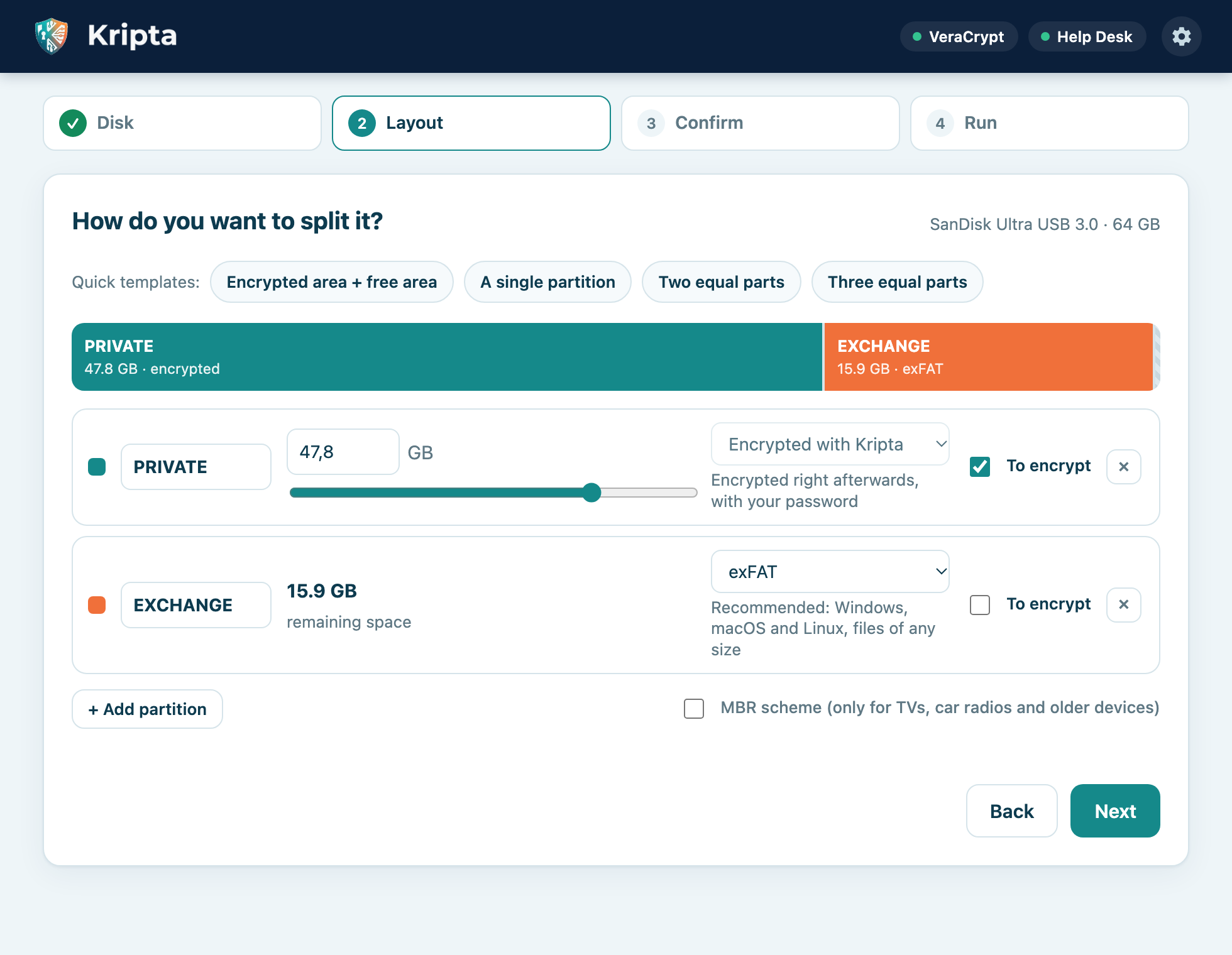
| Template | Result |
|---|---|
| Encrypted area + free area | Three quarters of the disk to encrypt and the rest free in exFAT. It is the template proposed at the start. |
| A single partition | The whole disk in one partition. |
| Two / Three equal parts | The disk divided into parts of equal size. |
For each partition you set name (up to 11 characters: letters, digits, _ and -), size (the last one takes
the remaining space), file system and To encrypt. + Add partition adds another one (up to 8).
| File system | Opens on | Notes |
|---|---|---|
| exFAT (recommended) | Windows, macOS, Linux | No practical limit on file size. |
| FAT32 | Almost any device | Files up to 4 GB; on Windows partitions up to 32 GB. |
| NTFS | Windows; macOS read-only | On Linux it requires ntfs-3g. |
| APFS, Mac OS Extended | Mac only | Available only from a Mac. |
| ext4 | Linux only | Available only from Linux. |
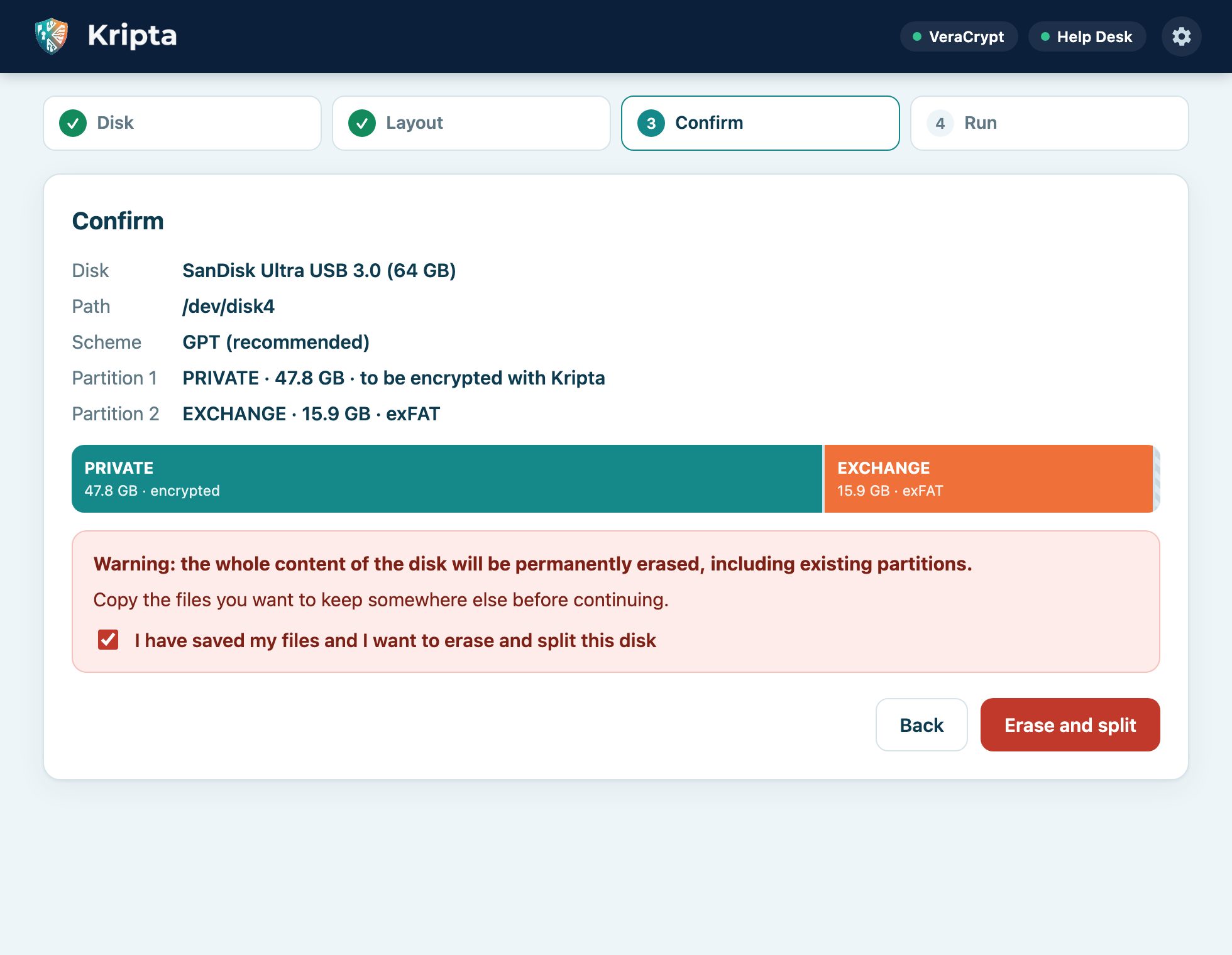
Tick the confirmation box and press Erase and split. It usually takes less than a minute.
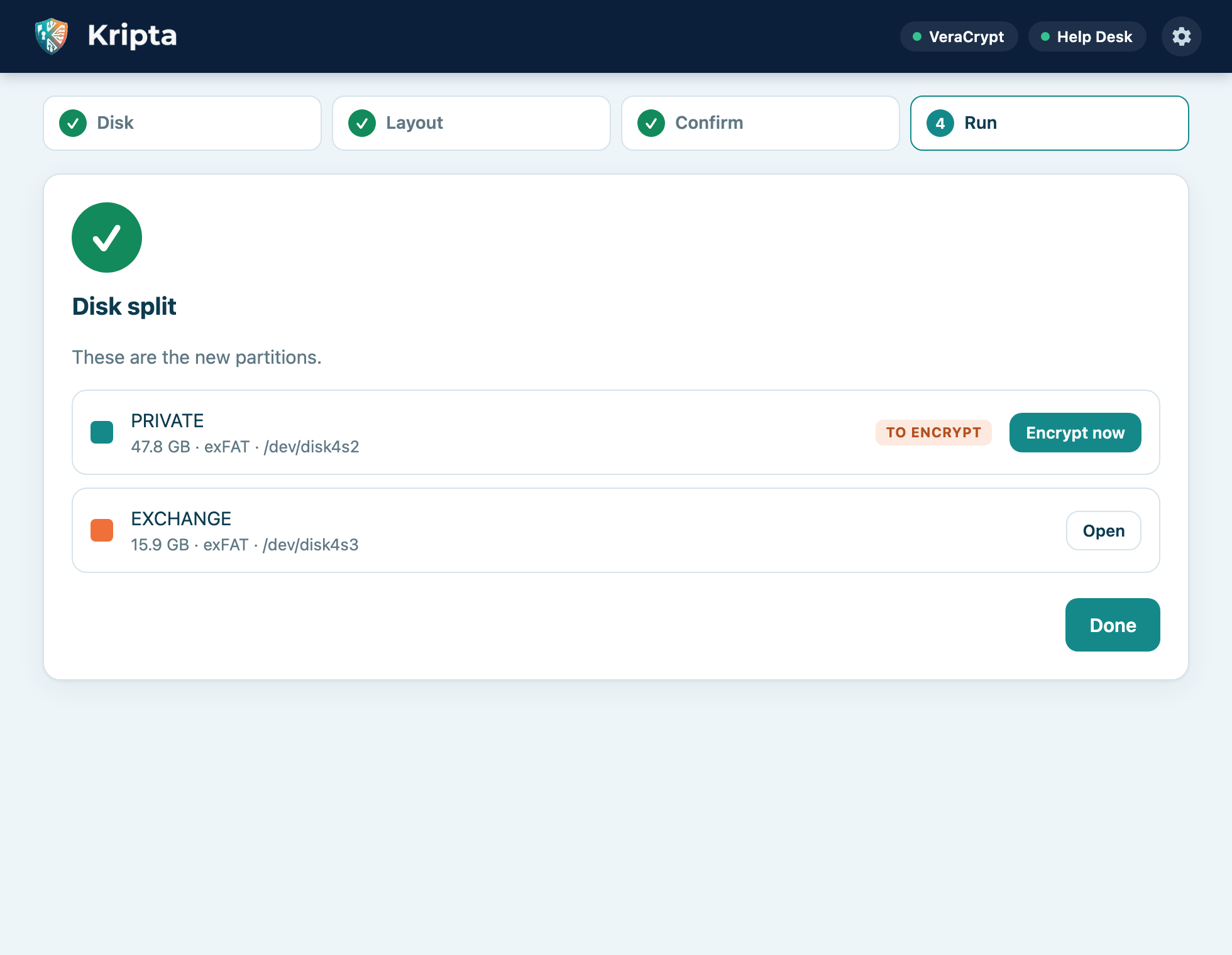
Next to the partitions to encrypt press Encrypt now: encryption (chapter 4) starts with the partition already selected.
When you connect an encrypted drive while Kripta is running, the password request appears automatically.
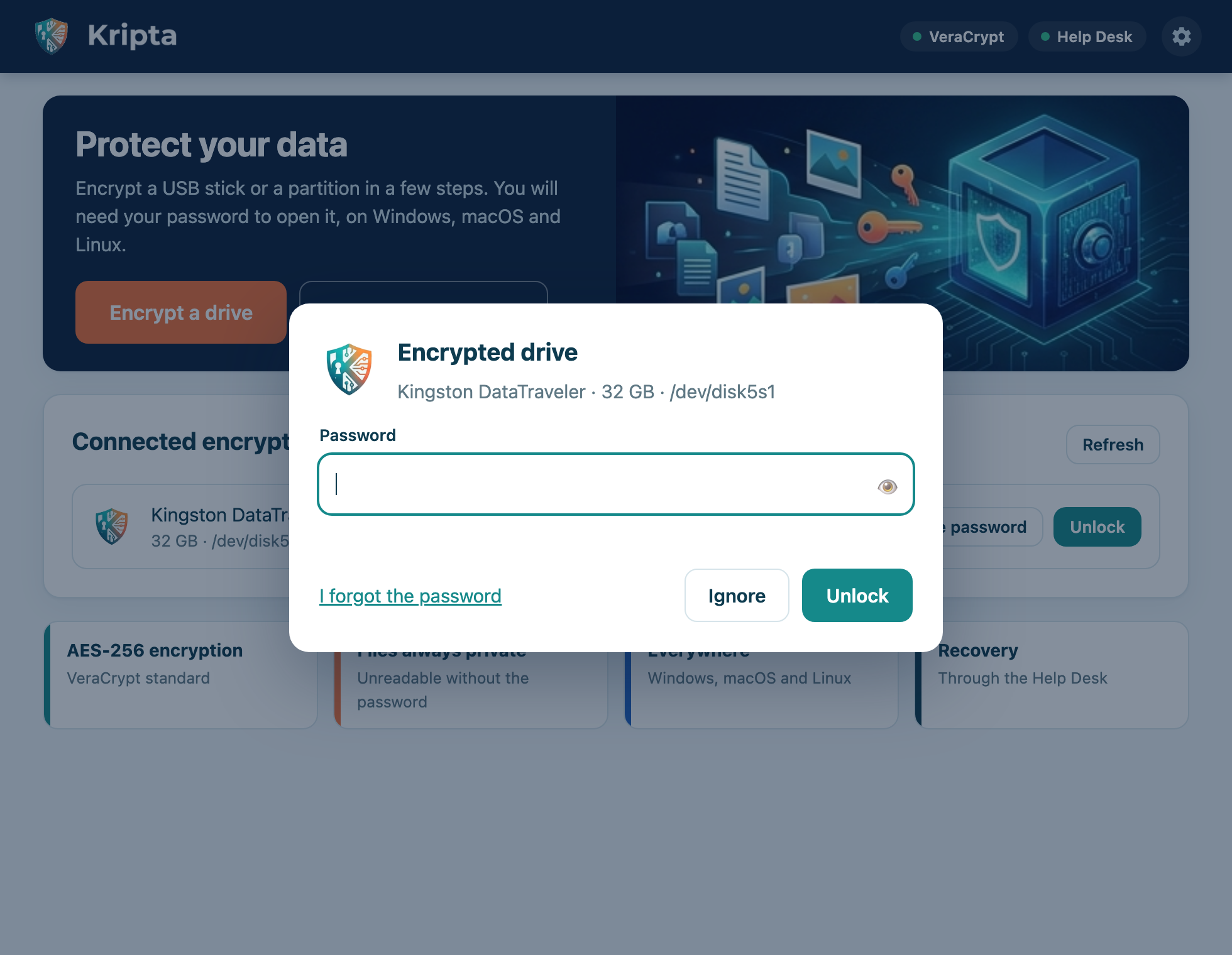
With the drive unlocked you use files normally: everything you write is encrypted transparently. When you are done, close the open files, press Lock and disconnect the drive.
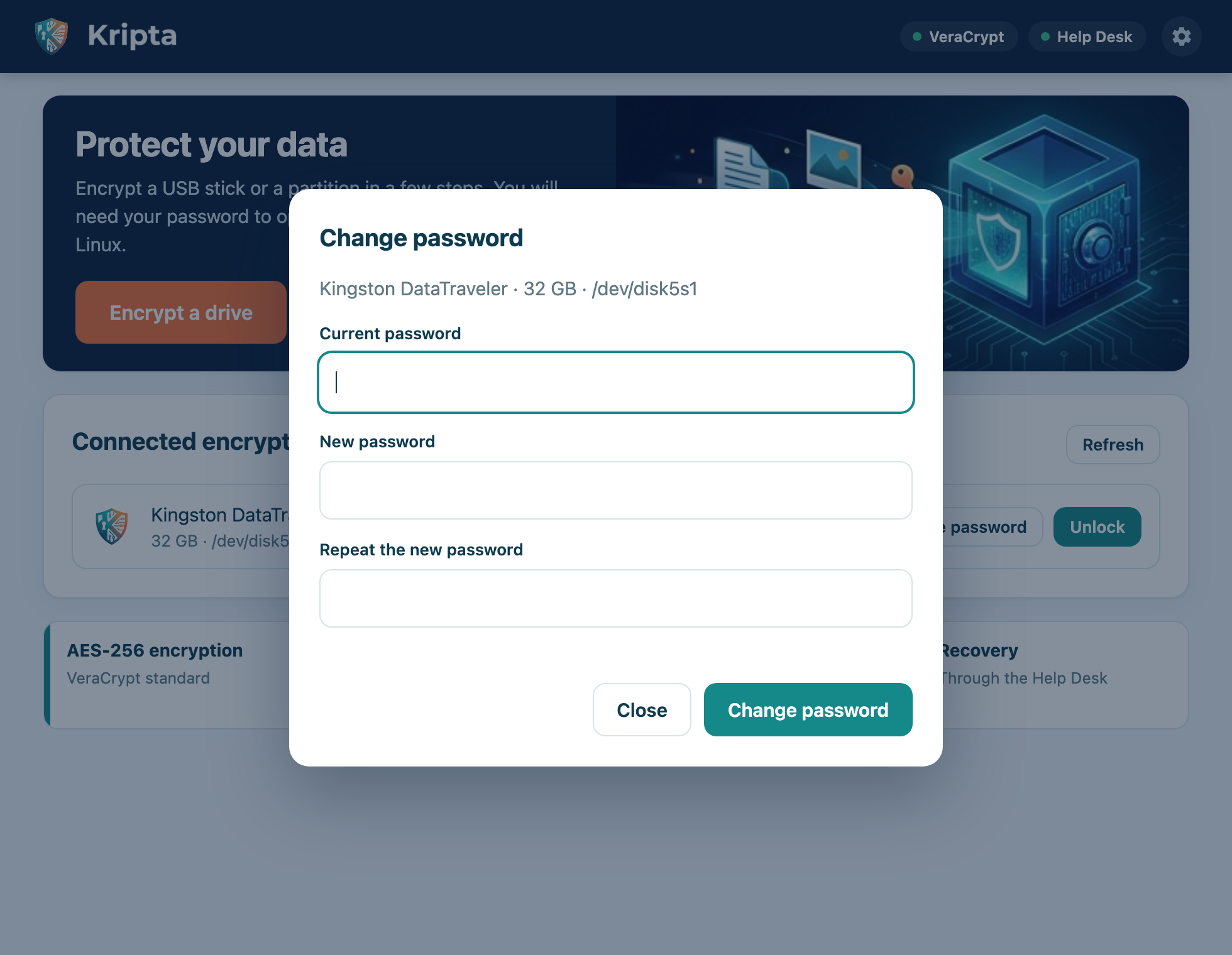
You can change the password whenever you like, if you know the current one. The data on the drive is not touched.
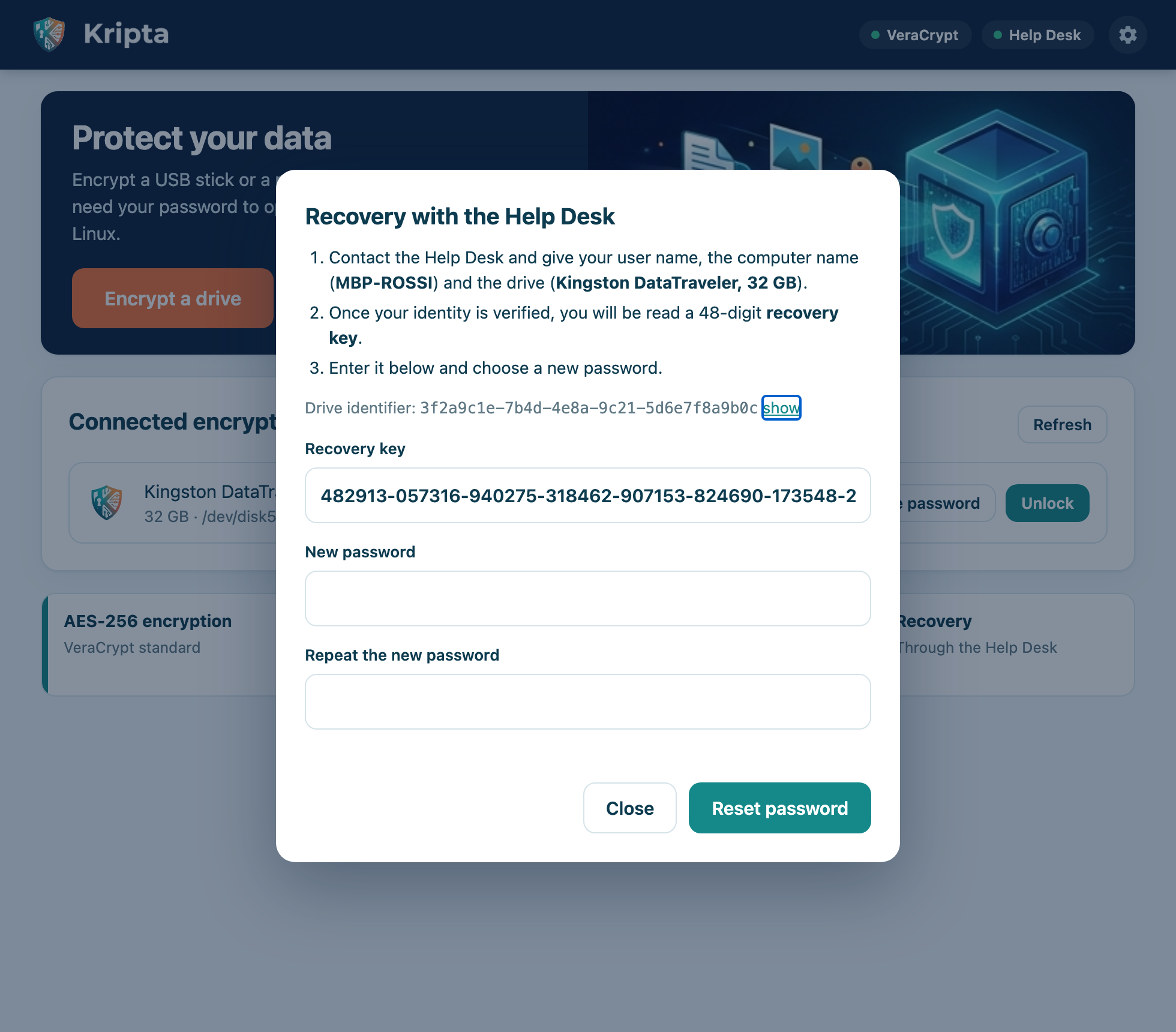
The Help Desk can give you the drive's recovery key: with it you set a new password and get all your files back.
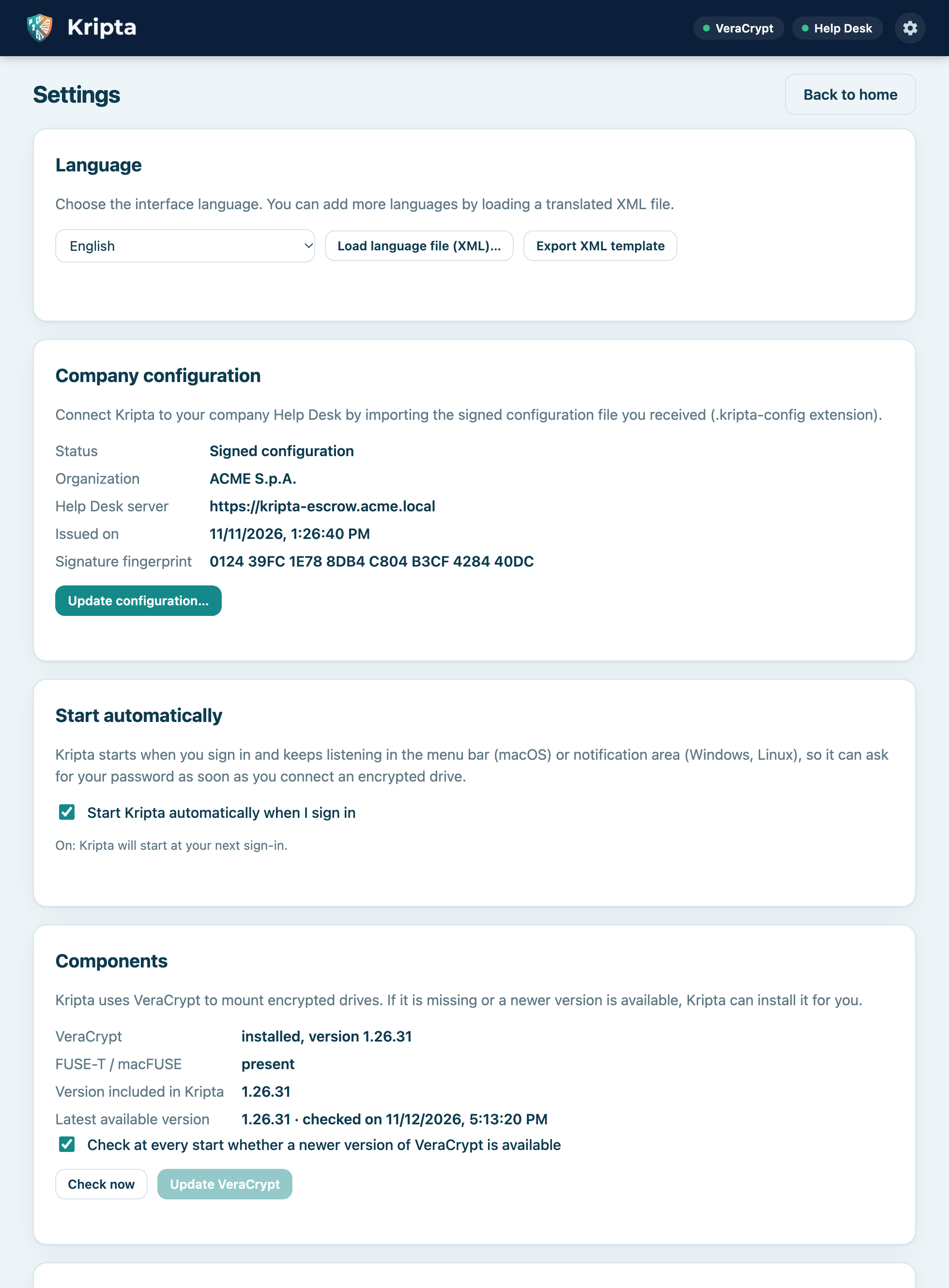
They open with the gear at the top right or with Settings… in the icon menu.
Choose the language from the list: the interface, the icon menu and the authorization requests change immediately. With Automatic Kripta uses the system language. Included languages:
ItalianoEnglishFrançaisEspañolDeutschРусскийالعربية中文日本語
Translations are simple XML files, one per language. To add one:
<string> element, keeping the id attributes and the {1}, {2} placeholders unchanged.code (for example pt or pt-BR), name, english-name and dir (rtl for right-to-left languages).<kripta-language format="1" code="pt" name="Português" english-name="Portuguese" dir="ltr"> <string id="home.title">Proteja os seus dados</string> … </kripta-language>
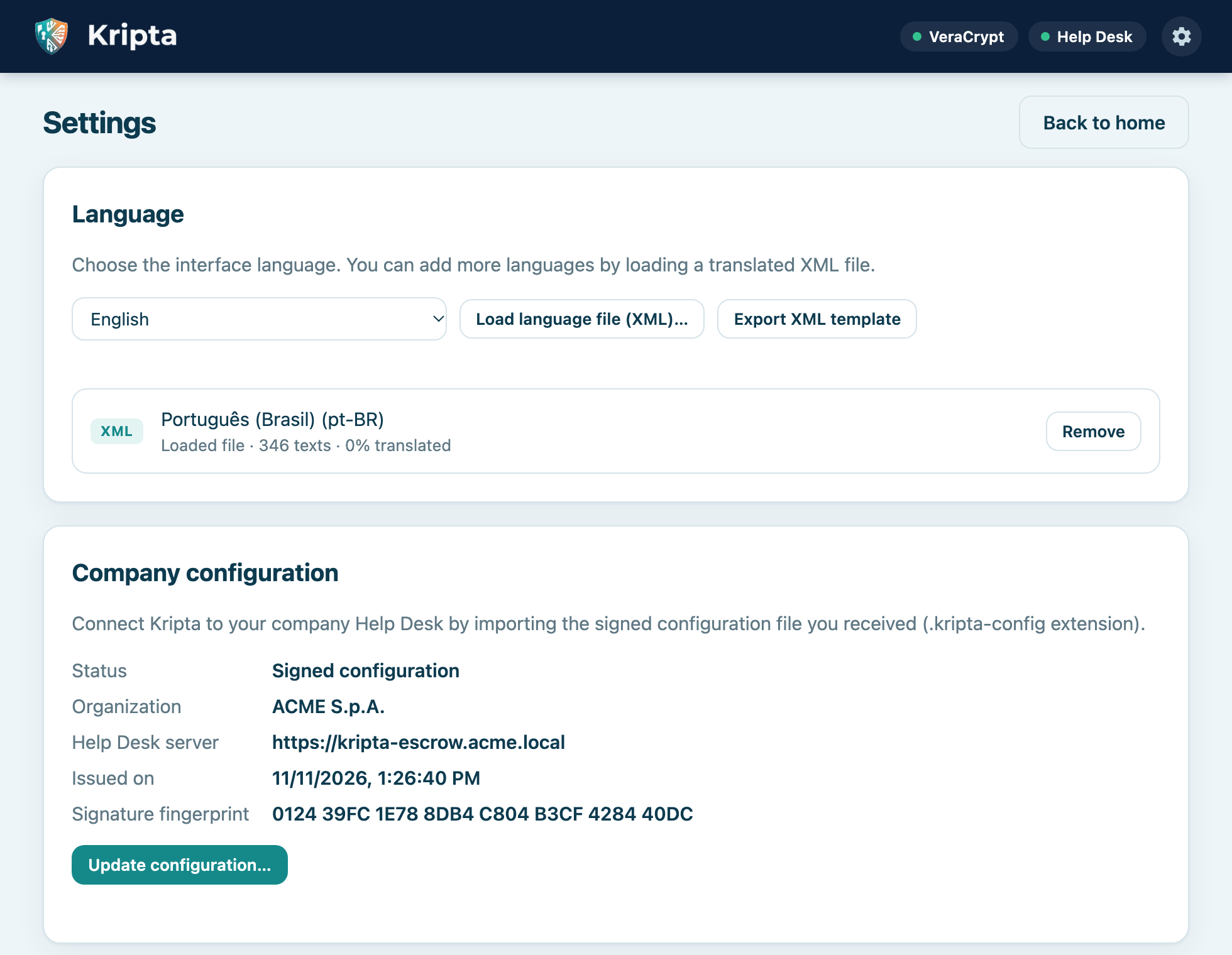
Loading a file with the same code as an included language replaces it (useful to fix a term); Remove
restores the original. The files of the nine included languages are next to this manual, in the lang folder.
Shows organization, Help Desk server, date and fingerprint of the installed configuration. Update configuration… imports a new file received from the Help Desk (chapter 2).
Shows the installed VeraCrypt version, the one included in Kripta and the latest available. Check now checks immediately, Install / Update VeraCrypt starts the installation. The Check at every start… box turns the automatic check on or off.
The Start Kripta automatically when I sign in box is on by default. Below it you can see whether automatic start is registered in the system. If you turn it off, Kripta does not detect encrypted drives until you open it.
Drives encrypted by Kripta use the standard VeraCrypt format with the exFAT file system: they open on Windows, macOS and Linux.
| Computer | What happens when you insert the drive |
|---|---|
| With Kripta configured | The password request appears: everything is automatic. |
| With Kripta installed but without company configuration (for example at home) | The password request still appears and the drive unlocks. If VeraCrypt is missing, Kripta offers Install now. Without configuration you cannot encrypt new drives or recover passwords. |
| With VeraCrypt only | Open VeraCrypt, choose a free slot, Select Device, choose the stick's partition, then Mount and enter the password. |
| Without Kripta or VeraCrypt | No request appears: operating systems do not start programs from USB sticks. The system may offer to format the drive: always refuse. Install Kripta (from the company site) and connect the drive again. |
| Message or situation | What to do |
|---|---|
| Kripta is not yet connected to your company Help Desk | Import the .kripta-config file received from the Help Desk (chapter 2). |
| The package signature is not valid | The file has been modified or damaged: ask the Help Desk for it again. |
| The package is signed with a different key / not with an approved key | The file does not come from your company. Do not use it and contact the Help Desk. |
| The configuration is managed by IT and cannot be replaced | The computer is configured centrally: nothing to import. |
| The VeraCrypt encryption engine is not installed | Press Install now. If there is no button, contact the Help Desk. |
| The official VeraCrypt signature is not valid / the file does not match the signed version | The download was altered or incomplete: installation was cancelled. Try again later. |
| Lock all encrypted drives before updating VeraCrypt | Press Lock on the open drives, then repeat the update. |
| Restart the computer to complete the update (Windows) | Save your work and restart. |
| The Help Desk server cannot be reached. Encryption has not started. | Connect to the company network or VPN and try again. The data on the drive has not been touched. |
| Recovery keys waiting to be sent | Connect to the network and press Retry now. Keep Kripta running until the alert disappears. |
| No drive available | Reconnect the stick (try another USB port) and press Refresh list. |
| Administrator authorization cancelled / Timed out | Repeat the operation and confirm the system request. |
| Cannot unmount / lock the volume | Close the documents and windows opened from the drive, then try again. |
| Wrong password | Check Caps Lock and the keyboard layout. If you do not remember it, see chapter 8. |
| Wrong recovery key | Check the digits with the operator again: you need the most recent key. |
| The disk contains an unlocked Kripta drive | Lock it on the home screen, then repeat the splitting. |
| The system did not detect the new partitions | Disconnect and reconnect the drive. |
| The language file is not valid XML / element not allowed | Fix the file indicated in the message: only <string> elements with plain text are allowed. |
| The unlock window does not appear when inserting the drive | Check that Kripta is running (icon in the bar) and use Unlock in the main window. |
No. Encryption erases the drive. Copy the files elsewhere, encrypt the drive and then copy them back.
No. Kripta is designed for sticks and external disks; system disks are not shown.
The Help Desk only keeps the recovery key and can look it up only at your request, with every access logged.
No. You never see it and do not need to keep it: it is stored at the Help Desk.
Only VeraCrypt (and FUSE-T on macOS), after your confirmation and only if the developers' official signature is valid.
Yes, by installing Kripta or VeraCrypt (chapter 10). Always follow company rules on using data off-site.
You can translate the XML template and load it from Settings (chapter 9), or ask IT to distribute one.
Windows, macOS and Linux may encode them differently: the same password typed on another system might not be recognized.
Very little: a few hundred kilobytes for the volume headers.
| System | Package | Notes |
|---|---|---|
| Windows 10/11 (x64) | Kripta_1.2.0_x64-setup.exe | Contains the official VeraCrypt MSIs (x64 and ARM64). The app starts with administrator rights. |
| macOS 11+ | Kripta_1.2.0_universal.dmg | Contains VeraCrypt (FUSE-T and macFUSE builds) and FUSE-T, which needs no kernel extension. |
| Debian / Ubuntu | Kripta_1.2.0_amd64.deb | Contains VeraCrypt for Ubuntu 22.04/24.04 and Debian 12/13; for other versions Kripta downloads the verified package. |
| Fedora / RHEL | Kripta-1.2.0-1.x86_64.rpm | Contains VeraCrypt for Fedora 44; also install exfatprogs. |
| Other distributions | Kripta_1.2.0_amd64.AppImage | Portable executable. |
On the escrow server, once, generate the signing key; then sign the client configuration (template in deploy/client/kripta.toml.example):
kripta-escrow keygen-sign            # private key (keep offline) + public key + fingerprint
kripta-escrow sign-config client.toml signing.key "ACME Ltd" acme.kripta-config
Distribute acme.kripta-config to users and publish the fingerprint on a trusted channel (intranet, Help Desk phone).
Kripta saves the configuration in the system location (%ProgramData%\Kripta, /Library/Application Support/Kripta,
/etc/kripta) through the privileged process, together with the signer's key: later updates must carry the same signature.
To avoid relying on users checking the fingerprint, build Kripta with
KRIPTA_PROVISIONING_KEYS=<public key>: only those keys will be accepted.
A configuration copied by hand by IT (unsigned) cannot be replaced by a package.
scripts/fetch-veracrypt.py at build time.5069 A233 D55A 0EEB 174A 5FC3 821A CD02 680D 16DE) and the file hash.kripta.toml: veracrypt_update_check = false turns off the update check;
veracrypt_release_api = "https://mirror.internal/…" uses an internal mirror with the same format as the GitHub API.The language XML files are in app/ui/lang/ (included in the app) and in docs/manuale/lang/. Languages loaded by users
are saved in the user data folder (languages/). To distribute a new language to everyone, add the file to
app/ui/lang/ and its code to the list in app/ui/i18n.js.
kripta --background): automatic. Kripta registers it at every start (macOS: ~/Library/LaunchAgents/com.kripta.agent.plist, restarted if it terminates abnormally; Windows: scheduled task “Kripta” at logon with highest privileges, also created by the installer and removed on uninstall; Linux: /etc/xdg/autostart/kripta.desktop from the .deb/.rpm packages, ~/.config/autostart/kripta.desktop for the AppImage). It can be turned off in Settings.deploy/macos/com.kripta.helper.plist, deploy/linux/kripta-helper.service.